
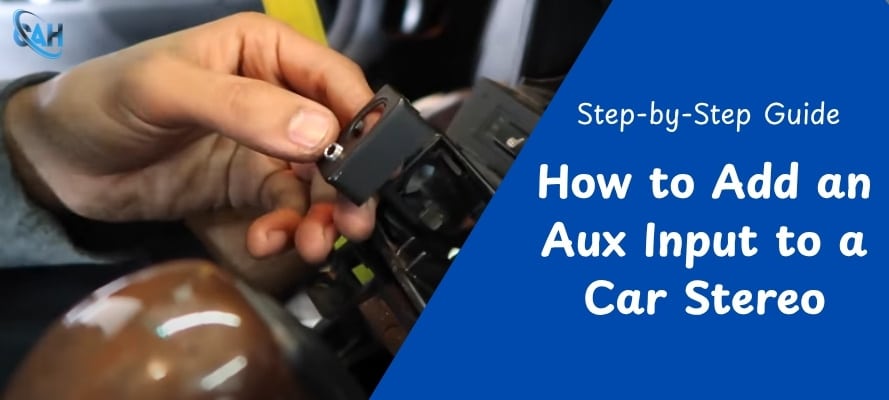
If you've ever wanted to breathe new life into your car stereo without shelling out for a brand-new unit, you're in the right place. In this guide, we’ll explain exactly how to add an aux input to a car stereo, whether you're working with an aftermarket setup or trying to retrofit an older factory system. Based on our experience with many installs, this is one of the most satisfying and affordable upgrades you can do.
Table of Contents
Why AUX Inputs Still Matter
While modern head units often feature Bluetooth and USB connectivity, AUX inputs remain a reliable fallback. They deliver direct analog sound with minimal fuss or compression. From our perspective, if you're dealing with an older car stereo, adding an AUX port is far more cost-effective than swapping out the entire unit.
Step 1: Check Your Stereo Compatibility
Before you buy anything, it’s crucial to identify what kind of stereo you’re working with. This step determines which AUX installation method will actually work and, in our view, it saves a lot of troubleshooting later.
Aftermarket stereos with RCA or AUX ports
If your car has an aftermarket head unit, you’re in luck. These often come with RCA or dedicated AUX inputs on the back, making them the easiest to upgrade.
Factory stereos with CD changer ports
Many stock stereos don’t include AUX, but they often have CD changer ports. These can be used with an AUX converter kit that mimics a CD changer.
Head units needing workaround solutions
If your stereo has no usable ports, don’t worry. You can still add AUX using an FM modulator or a Bluetooth receiver that plugs into your power outlet.
Step 2: Choose Your AUX Input Installation Method
Once you know what your stereo supports, it’s time to pick the installation method that fits best. From plug-and-play RCA adapters to FM modulators, we’ve found there’s an option for nearly every setup and budget.
Method 1: RCA-to-AUX Adapter
This method is ideal for aftermarket stereos with rear RCA inputs. You simply plug the RCA-to-AUX cable into the stereo and route the AUX lead to a spot on your dash or console.
Method 2: CD Changer to AUX Kit
A good choice for factory stereos with a CD changer port. These kits plug directly into the rear CD changer input and provide a functioning AUX input.
Method 3: FM Modulator with AUX Input
Useful if your stereo lacks both RCA and CD changer ports. The modulator connects in-line with your FM antenna and broadcasts the AUX signal over a silent FM frequency.
Method 4: Bluetooth Receiver with AUX Output
These plug into your 12V outlet and transmit audio via Bluetooth from your phone while sending it through the AUX jack into your stereo. This is especially helpful for devices without headphone jacks.
Pro Tip: Some kits also add Bluetooth. we recommend checking our guide to Connecting Soundbar To Car Stereo for integration tips.
Step 3: Gather the Tools and Materials
Before starting, it’s best to gather everything you need. In our experience, having the right tools ready makes the job faster, cleaner, and far less frustrating. Here’s a checklist to prepare:
- Stereo removal keys or panel removal tool
- RCA-to-AUX cable or CD-to-AUX converter kit
- Flush-mount AUX port (optional but recommended)
- Trim pry kit
- Screwdriver set
- Zip ties or cable clips
Step 4: Installation Steps (Hands-On Guide)
This is where the actual work begins, but it’s not complex. Whether you’re a first-timer or more experienced, this step-by-step process will guide you through installing your AUX input.
1. Safely Remove the Head Unit
Disconnect the vehicle’s battery to prevent shorts or damage. Use stereo removal keys or a trim pry tool to release your head unit from the dash. Pull it out gently to expose the rear connections without straining the wiring.
2. Connect the AUX Adapter or Converter
Take the AUX solution you selected earlier. If it’s an RCA-to-AUX cable, plug it into the rear RCA inputs. If it’s a CD changer kit, connect it to the corresponding port. For FM modulators, disconnect the FM antenna and insert the modulator in-line. Always check that connections are secure.
3. Route the AUX Cable
Plan a clean cable path from the back of your stereo to your chosen AUX port location. Thread it through existing dash gaps or side panels when possible. Use zip ties or clips to keep it secured and prevent rattles.
4. Mount the AUX Port (Optional but Recommended)
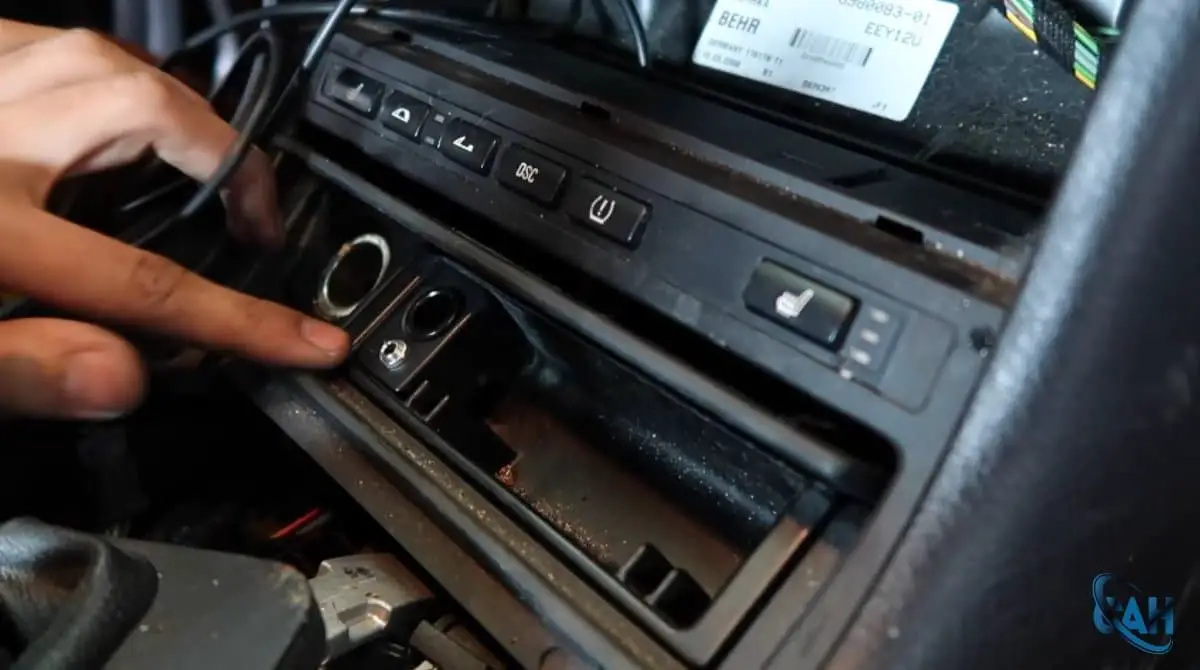
For a more professional finish, install a flush-mount AUX jack. Drill a small hole in your glovebox, lower dash, or center console—whichever location is most accessible. Secure the jack with the locking nut that comes with the extension cable.
5. Test the Input
Reconnect the battery and power on your head unit. Switch to the correct source mode (AUX, CD changer, or FM). Plug in your device, press play, and check that sound is coming through clearly. Fine-tune EQ and volume settings as needed.
Step 5: Mounting the AUX Port (For a Clean Look)
Sound quality is important, but so is presentation. Mounting the car stereo AUX port securely makes daily use easier and the install look professional. Common mounting options include:
- Inside the glovebox
- Center console compartment
- Lower dashboard trim panel
Step 6: Troubleshooting Common Issues
Even well-prepared installs can run into issues. When that happens, these are the solutions we’ve seen work most consistently:
Issue: No Sound or Distorted Input
- Symptom: Nothing plays, or audio sounds muffled.
- Fix: Ensure the stereo is in the correct input mode (AUX, CD changer, or FM). Double-check connections and try another device to rule out hardware problems.
Issue: Phone Not Detected by AUX
- Symptom: The phone doesn’t play through the car.
- Fix: Some CD changer-based adapters need “play” pressed or a source switch to activate. Restart both devices and reconnect.
Issue: Ground Loop or Buzzing Noise
- Symptom: A constant hum or buzzing when the engine is on.
- Fix: This is usually a ground loop. Use a ground loop isolator between the AUX input and the stereo. For advanced fixes, see our guide on grounding RCA cables.
Frequently Asked Questions (FAQ)
Should I just upgrade my head unit instead?
If your stereo feels too limited or you want modern features like Bluetooth, USB, and touchscreens, upgrading might be the smarter long-term move. However, if you prefer the factory look and only need AUX functionality, adding an input is often the better choice.
Can you add an AUX input to any car stereo?
In most cases, yes. Even if the stereo has no built-in ports, CD changer kits, FM modulators, or Bluetooth-to-AUX receivers usually provide a workable solution.
What’s the best way to add AUX to a factory stereo?
A CD changer to AUX converter kit is typically the cleanest and most OEM-friendly method.
Do FM modulators provide good sound quality?
They work, but quality is lower compared to direct AUX connections. We only suggest them when no other option is available.
Why is there buzzing or humming noise from my AUX?
This usually indicates a ground loop. A ground loop isolator often resolves the issue. Check grounding connections as well.
Will adding AUX void my car stereo warranty?
It might, especially if cutting or soldering is required. Always check your vehicle or head unit’s warranty terms before starting.
Conclusion
Adding an AUX input to a car stereo is a straightforward DIY project that can significantly improve your audio setup. In our professional opinion, it’s one of the best low-cost ways to modernize an older system without replacing the head unit. Whether you’re enhancing a factory stereo or retrofitting an aftermarket model, this upgrade is practical, effective, and worth the effort.
For more related advice, We suggest checking the following guides:
- Remove Broken or Stuck Aux Cord – Quick fixes without damaging your stereo.
- Add Touchscreen to Single DIN Stereo – Simple upgrade guide.